
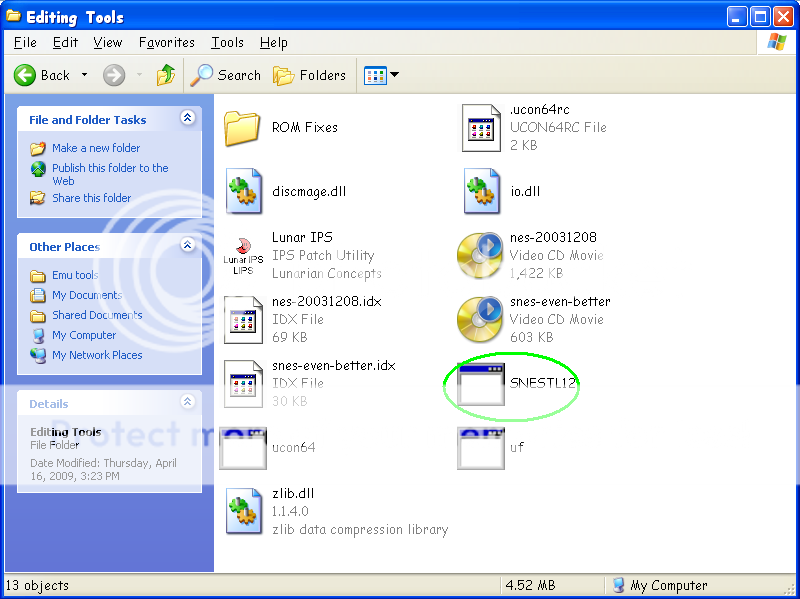
Pay no attention to the other tools on that folder, for now though as what we need to talk about is SNESToolRun it by double clicking and...Voila!
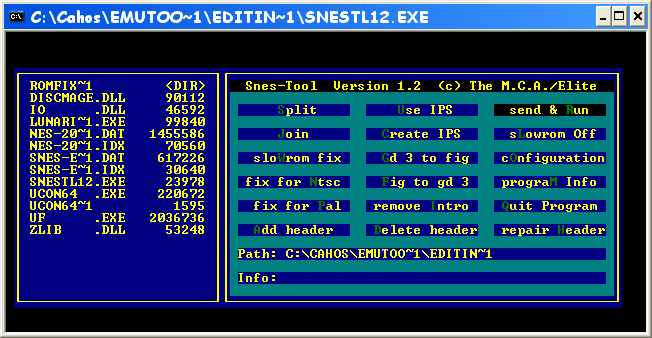 We see SNESTool in its glory!As you can see, it runs under the command line as the application is DOS based, it does feature a GUI interface but not one that relies on your mouse.The interface is fairly simple to get to know actually. You have two parts to the screen, the smaller screen on the left shows you the stuff that's in the current folder SNESTool is in & the bigger screen next to it has the various command options SNESTool has to offer. You navigate the various options on the right screen by way of the four keyboard arrow keys & execute a command function by hitting enter. Or you can use hotkeys to your advantage, see the letters on every command item written in a green colour? Those are SNESTool's hotkeys for each command option.You need not worry with the other command options on screen except for Add Header (hotkey A) & delete header (Hotkey D).For this demo I will use the Feda ROM as stated on my Feda Translation patch thread:
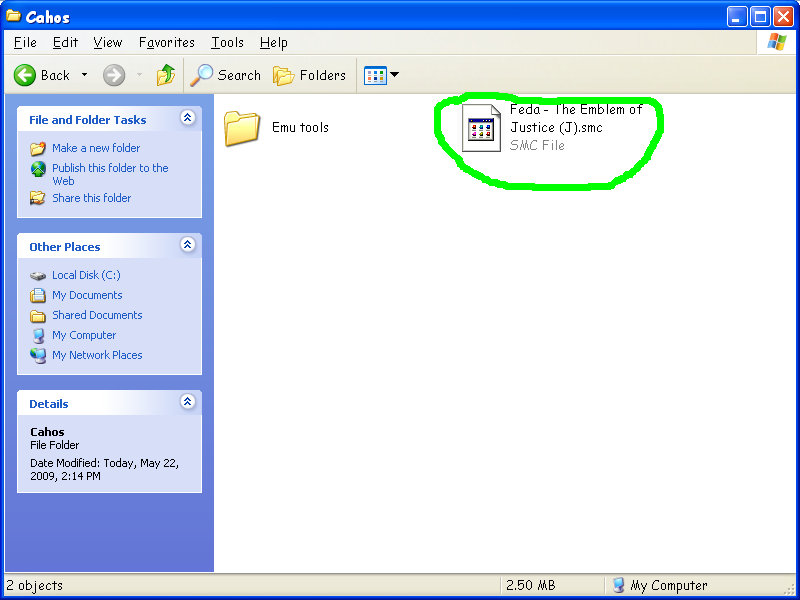 On the Feda translation patch readme, it says the ROM MUST have a header & it's size should be:
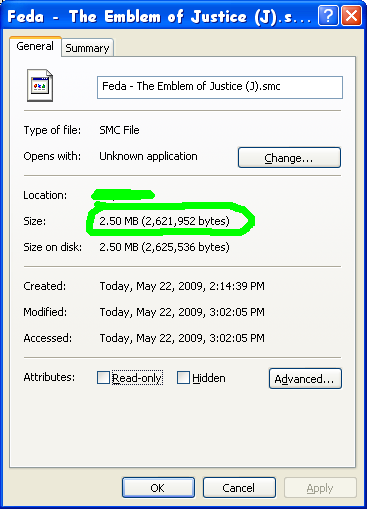 But the Feda ROM we get here at RomUlation is only:
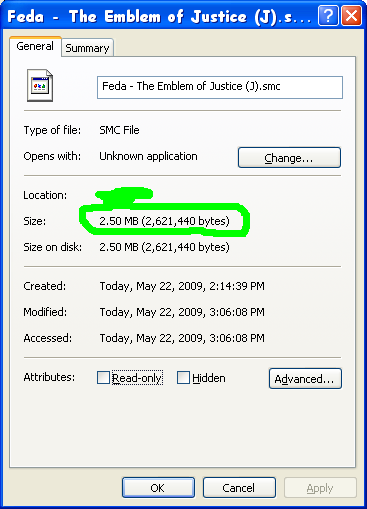 Which means the ROM indeed has no header.So back to SNESTool, we press A (Add header hotkey)
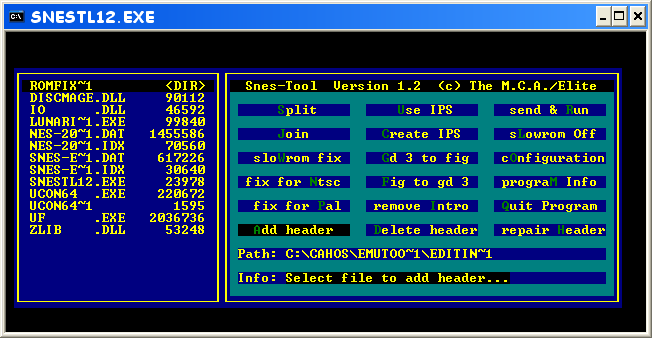 We now see the words "select file to add header..." written on the Info section of the main command screen & a black rectangular marker on the very topmost entry on the list at the left. That marker serves as the file finder/selector you use to locate a specific file & since my Feda ROM is somewhere else we need to get to it to start applying a header. Note that entries on the left screen shows you what files (& folders) are there along with SNEStool so we need to go & look for our Feda ROM. to do this we press the right arrow key to enter a known folder & the left arrow key to exit it. Keep entering & exiting folders until you locate where your Feda ROM is at. When you do find it, highlight it if it is not at the very top of the list by pressing either the up or down arrow keys then press ENTER.
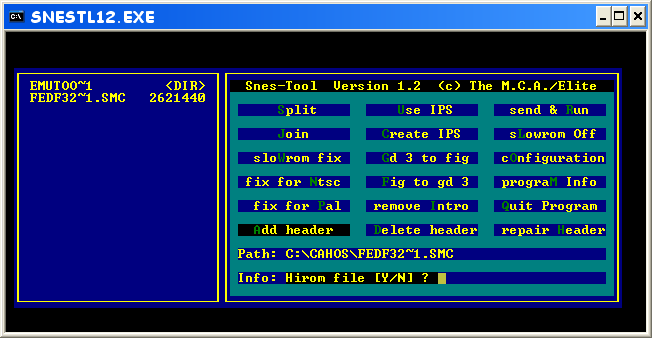 As soon as you hit ENTER the info section of the main command screen will ask if you want to make the ROM into a HiROM file or not (LoROM) again you need not concern yourselves with this as this is something related with game copier/loaders & real SNES hardware, you only need to worry about this if the readme file of a patch requires a ROM to be HiROM or LoROM, but in most cases you should opt to make your file as a HiROM file, so for not hit Y. Next SNESTool will ask you if you want to "Disable static RAM", I'm quite unsure what this is though but I usually just press Y & end the process with no ill effects to the ROM whatsoever, so for now just hit Y and you're done!For removing a header, you do the same steps, except hit D instead of A as your hotkey to delete a Header. After which you may now proceed with applying your patch with LunarIPS as necessary ;)