
PRO ONLINE will be what you guys have been dreaming of. Online Gaming with nothing but a PSP, Router and any Adhoc-Enabled Title you want.I am NOT responsible for anything that happens with your psp system
This post will serve as my way of keeping everyone of you up 2 date on the latest developments.Pro CFW on the other hand is undergoing some critical revamps aswell to be "mentally prepared" for the upcoming online module.
If I do Beta-Tests, then they will most likely be limited in a timely fashion and provided as plugin modules.The final revision will be included into PRO CFW and be opensource / gpl like all our other developments.
all i know of is that THIS version (pro c) DOES NOT or NEVER WILL work for PSP 1000 (1g) Or PSP E1000 , also know as PSP Street, simply because it was not Built with wifi.A Stable Firmware for PrometheusIf you are using the Prometheus online client then you know there have been some bugs in the past due to how the online client was working with the firmware. Well now your CFW of choice has now been updated to work better with Prometheus, how? Originally there where some issues with the code one of which forced you to exit with the VSH menu. Also to note this version of the 6.XX PRO-C has be built to work with Prometheus and will be the basis for all future updates to the online client, so you shouldn’t have to update again for quite some time if at all.Change-log (current version : 6.XX Pro-C fix4) :* Fixed several memory unlocking problems like the VSH exit crash (broken homescreen).
* Added high memory forcing support for SEN NPDRM EBOOTs (most useful in combination with Prometheus Online - www.prometheus.uk.to).
* Relinked the PSP online manual to the PRO CFW server.
* Fixed CIPL Section Brick
* This release is compatible with Prometheus Online, a 2g+ PSP online gaming service which can be found at www.prometheus.uk.to!
* 6.39 PRO-C fix3 contained the wrong CIPL installer. fix4 contains the right one.
* This release is compatible with Prometheus Online, a 2g+ PSP online gaming service which can be found at www.prometheus.uk.to!
* Updated the PARAM.SFO files to show proper CFW version.Change-log PRO - C Online Client (Current version : v0.10) :* Fixed a NULL Pointer crash in sceNetAdhocctlCreate / sceNetAdhocctlConnec
* Added 1.X FW Import Table Hooking Support (this should make a bunch more 1.X games work, or atleast get closer to working
* New PRO Online Homescreen HUD & Button Mapping
* Fixed a bug in the Netconf Utility Emulator which caused invalid disconnect eventsTutorials:
Spoiler: Installation of PRO CFW
1.0 Introduction
Before installing, you need to make sure your PSP is compatible.
At the time of writing this article, PRO CFW supports 4 different PSP Kernel.6.20
6.35
6.39
6.60
If your PSP runs a firmware, lower or equal to 6.60, your PSP should be compatible to PRO CFW.
Should your PSP run a firmware, lower than your target PRO Base Kernel Version, grab and install the appropriate Update File.1.1 Installation
You read the introduction and now know your PSP is compatible to PRO CFW. Now it's time to install the Aftermarket Firmware Modules into your system.Grab the latest binary release from the 6.20, 6.35, 6.39, 6.60 Pro-C fix released and unpack it. You will find two (or three, if you got the 6.20 / 6.39 / 6.60 version) folders of interest which you will use to install and operate the Aftermarket Firmware.PROUPDATE - Application to install Aftermarket Module
FastRecovery - Application to QuickStart Aftermarket Modules
620PRO_Permanent - Permanent Bootloader Installer (for 6.20 Kernel only)
CIPLFlasher - Application to install a CIPL-based permanent Bootloader (for 1g and 2g-first gen units only)Copy all of them onto your PSP inside the PSP/GAME subfolder and disconnect your PSP from PC.Rewriting of Flash has the potential to brick your PSP. Please go on with caution.1. Download and unzip the same thing it was in the PSP version of their own.2. Copy to (ef0/ms0) :/ PSP / GAME / the PROUPDATE was able to extract folder.3. Start the PRO-C Updater from the XMB. Press "X" to install4. Return to the XMB and press the × button when the installation is complete.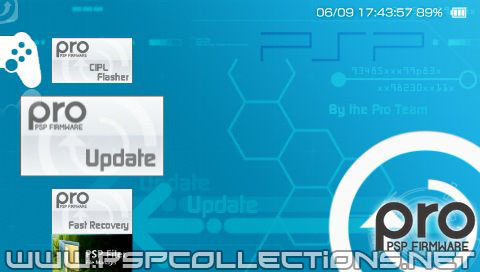
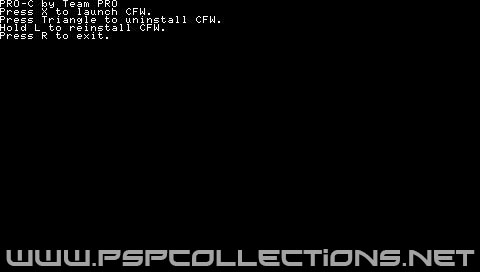 Introduction of the Fast Recovery
LCFW would have been invalidated because the power is turned off, if you want to enable re-use the Fast Recovery.
It can also be activated in the PRO-C Updater, you made ​​me automatically until you return to the XMB and activate it in this thing to start Fast Recovery.This in itself is a function of CFW to install modules, since there are no work to introduce LCFW in PRO-C Updater at the beginning is required.1.Copy to (ef0/ms0) :/ PSP / GAME / the FastRecovery folder from the file can just unzip.2.Re-enabling PRO-C is available by invoking the 6xx PRO-C Fast Recovery from the XMB.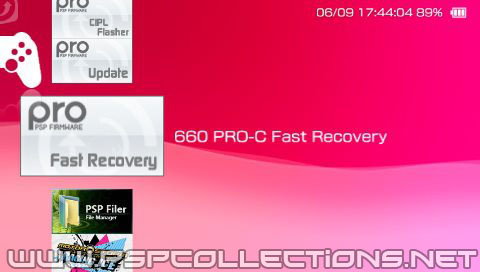 Introducing a Permanent Patch 6.20 PRO-C
To 6.20 PRO-C is a Permanent Patch is included. When you use this patch, to load automatically the next time you start LCFW modules, can be used as a real CFW without the need for Fast Recovery also can also be dropped completely the power of the PSP. However, the introduction of measures to base recommendations useless Pandora battery does not so much given up and put away the brick due to corruption of Flash.1. Copy to (ef0/ms0) :/ PSP / GAME / the 620PRO_Permanent folder that is included with the 620PRO-C.fix3.rar.2. Start the 620 PRO-C Permanent Patch from XMB.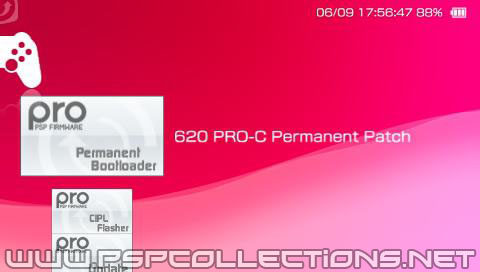 3. "X" will be saved as ms0 (ef0) :/ vshorig.prx vshmaim.prx is original when the button is pressed. Please do not delete this file since it may be that you use when you uninstall.
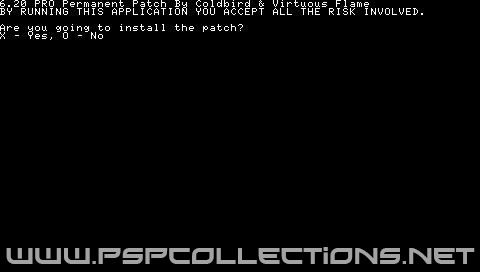 4. If you do not want to test whether it works properly, press the × button. Will be read from the Memory Stick that it works without writing vshmaim.prx disguised as Flash, XMB appears properly.
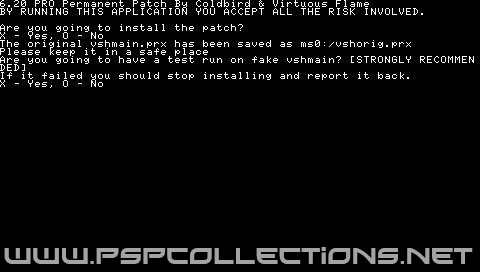 5. Now press the ○ button to start the 620 PRO-C Permanent Patch After you verify the operation again, if you press the × button. Vshmaim.prx will begin installation of impersonation.6. Return to the XMB automatically when the installation is complete. This completes the introduction. LCFW You should now have to start in a valid state, even from the power supply OFF.1.2 How to uninstall
If you want to uninstall will launch the 620 PRO-C Permanent Patch, just press the × button.If it does not exist flash0 :/ vsh / module / vshorig.prx, you must write back to the flash0 the vshorig.prx was created in step 3, however.Written back to flash0 :/ vsh / module / is ms0 :/ vshorig.prx You can start the PSP while simultaneously press the O button + X button buttons + SELECT + START button, which should be able to uninstall.Deal for the state semi-brickPSP is no longer the cause start is often in the version.txt and plug-ins are placed in the Memory Stick.It would make because you can not get rid of those files in this case, access to the internal memory of the PSP go, and you do not select a USB mode from XMB, you fall into a state can not even delete the file if you brick.If this happens you may be able to resolve by putting the power while holding down the SELECT button. To start without being caused by the state interference in the file of OFW, can be connected in USB mode with this.Is launched to Recovery Mode and put the power while holding down the R button, you may be able to resolve using the Toggle USB also feature. Please also try here.
Introduction of CIPL Flasher 6.60/6.39 PRO-C] [only To 6.60/6.39 PRO is shipped with things that CIPL Flasher. This is a tool that enables the PRO CFW PSP by writing to a custom IPL.It will be a different story that I do and Permanent Patch of 6.20 PRO, different, but not to operate on the appearance, CIPL Flasher here is because it uses a technique called IPL rewriting the same as the conventional CFW, full CFW will be treated as such.CIPL Flasher can be permanent in this PSP-1000 and PSP-2000 non-board measures only.1. Then copy it to ms0 :/ PSP / GAME / the CIPL_Flasher folders that are included in the 660 (639) PRO_B10.rar.2. Start the CPIL Flasher For PRO-C from XMB.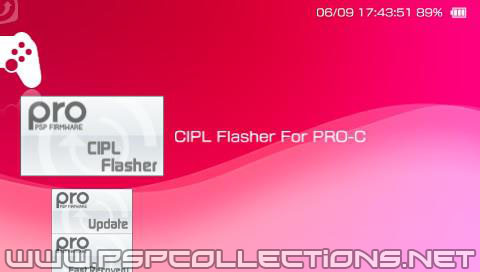 3. The installation screen appears, start the installation by pressing the × button. Return to the XMB automatically when completed.
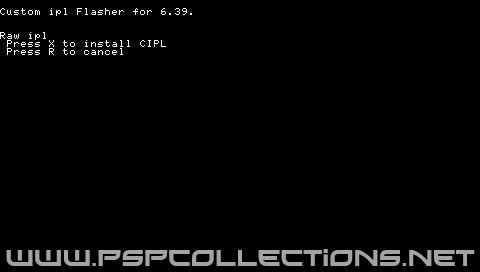 4. Introduction is complete LCFW state is continued, even after you restart if it is so (= CFW).
It can be displayed by the Recovery Menu in the same way as conventional CFW, hold down the R button to start, you can also start as OFW If you invoke by holding down the (PS) button HOME.How to uninstall
If you want to uninstall, start the CIPL Flasher again, press the O button. Is removed at this custom IPL, IPL will be a genuine written back.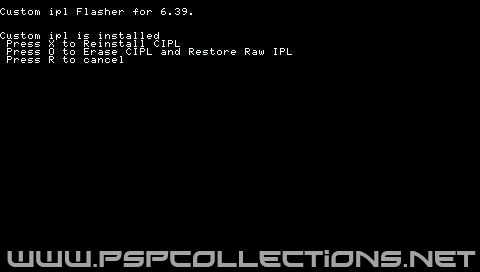 Notes on using CIPL Flasher:
In a state that turned into CFW in CIPL Flasher Please do not attempt to uninstall the PRO. The brick and not step in the procedure of CIPL → PRO uninstall uninstall. Please note that it can not be recovered and is not a Pandora battery When the brick.
Before installing, you need to make sure your PSP is compatible.
At the time of writing this article, PRO CFW supports 4 different PSP Kernel.6.20
6.35
6.39
6.60
If your PSP runs a firmware, lower or equal to 6.60, your PSP should be compatible to PRO CFW.
Should your PSP run a firmware, lower than your target PRO Base Kernel Version, grab and install the appropriate Update File.1.1 Installation
You read the introduction and now know your PSP is compatible to PRO CFW. Now it's time to install the Aftermarket Firmware Modules into your system.Grab the latest binary release from the 6.20, 6.35, 6.39, 6.60 Pro-C fix released and unpack it. You will find two (or three, if you got the 6.20 / 6.39 / 6.60 version) folders of interest which you will use to install and operate the Aftermarket Firmware.PROUPDATE - Application to install Aftermarket Module
FastRecovery - Application to QuickStart Aftermarket Modules
620PRO_Permanent - Permanent Bootloader Installer (for 6.20 Kernel only)
CIPLFlasher - Application to install a CIPL-based permanent Bootloader (for 1g and 2g-first gen units only)Copy all of them onto your PSP inside the PSP/GAME subfolder and disconnect your PSP from PC.Rewriting of Flash has the potential to brick your PSP. Please go on with caution.1. Download and unzip the same thing it was in the PSP version of their own.2. Copy to (ef0/ms0) :/ PSP / GAME / the PROUPDATE was able to extract folder.3. Start the PRO-C Updater from the XMB. Press "X" to install4. Return to the XMB and press the × button when the installation is complete.
Introduction of the Fast RecoveryLCFW would have been invalidated because the power is turned off, if you want to enable re-use the Fast Recovery.
It can also be activated in the PRO-C Updater, you made ​​me automatically until you return to the XMB and activate it in this thing to start Fast Recovery.This in itself is a function of CFW to install modules, since there are no work to introduce LCFW in PRO-C Updater at the beginning is required.1.Copy to (ef0/ms0) :/ PSP / GAME / the FastRecovery folder from the file can just unzip.2.Re-enabling PRO-C is available by invoking the 6xx PRO-C Fast Recovery from the XMB.
Introducing a Permanent Patch 6.20 PRO-CTo 6.20 PRO-C is a Permanent Patch is included. When you use this patch, to load automatically the next time you start LCFW modules, can be used as a real CFW without the need for Fast Recovery also can also be dropped completely the power of the PSP. However, the introduction of measures to base recommendations useless Pandora battery does not so much given up and put away the brick due to corruption of Flash.1. Copy to (ef0/ms0) :/ PSP / GAME / the 620PRO_Permanent folder that is included with the 620PRO-C.fix3.rar.2. Start the 620 PRO-C Permanent Patch from XMB.
3. "X" will be saved as ms0 (ef0) :/ vshorig.prx vshmaim.prx is original when the button is pressed. Please do not delete this file since it may be that you use when you uninstall.4. If you do not want to test whether it works properly, press the × button. Will be read from the Memory Stick that it works without writing vshmaim.prx disguised as Flash, XMB appears properly.5. Now press the ○ button to start the 620 PRO-C Permanent Patch After you verify the operation again, if you press the × button. Vshmaim.prx will begin installation of impersonation.6. Return to the XMB automatically when the installation is complete. This completes the introduction. LCFW You should now have to start in a valid state, even from the power supply OFF.1.2 How to uninstallIf you want to uninstall will launch the 620 PRO-C Permanent Patch, just press the × button.If it does not exist flash0 :/ vsh / module / vshorig.prx, you must write back to the flash0 the vshorig.prx was created in step 3, however.Written back to flash0 :/ vsh / module / is ms0 :/ vshorig.prx You can start the PSP while simultaneously press the O button + X button buttons + SELECT + START button, which should be able to uninstall.Deal for the state semi-brickPSP is no longer the cause start is often in the version.txt and plug-ins are placed in the Memory Stick.It would make because you can not get rid of those files in this case, access to the internal memory of the PSP go, and you do not select a USB mode from XMB, you fall into a state can not even delete the file if you brick.If this happens you may be able to resolve by putting the power while holding down the SELECT button. To start without being caused by the state interference in the file of OFW, can be connected in USB mode with this.Is launched to Recovery Mode and put the power while holding down the R button, you may be able to resolve using the Toggle USB also feature. Please also try here.
Introduction of CIPL Flasher 6.60/6.39 PRO-C] [only To 6.60/6.39 PRO is shipped with things that CIPL Flasher. This is a tool that enables the PRO CFW PSP by writing to a custom IPL.It will be a different story that I do and Permanent Patch of 6.20 PRO, different, but not to operate on the appearance, CIPL Flasher here is because it uses a technique called IPL rewriting the same as the conventional CFW, full CFW will be treated as such.CIPL Flasher can be permanent in this PSP-1000 and PSP-2000 non-board measures only.1. Then copy it to ms0 :/ PSP / GAME / the CIPL_Flasher folders that are included in the 660 (639) PRO_B10.rar.2. Start the CPIL Flasher For PRO-C from XMB.
3. The installation screen appears, start the installation by pressing the × button. Return to the XMB automatically when completed.4. Introduction is complete LCFW state is continued, even after you restart if it is so (= CFW). It can be displayed by the Recovery Menu in the same way as conventional CFW, hold down the R button to start, you can also start as OFW If you invoke by holding down the (PS) button HOME.How to uninstall
If you want to uninstall, start the CIPL Flasher again, press the O button. Is removed at this custom IPL, IPL will be a genuine written back.
Notes on using CIPL Flasher:In a state that turned into CFW in CIPL Flasher Please do not attempt to uninstall the PRO. The brick and not step in the procedure of CIPL → PRO uninstall uninstall. Please note that it can not be recovered and is not a Pandora battery When the brick.
Spoiler: How to Play Pro-C Online
* You must initially configure your network and Internet enabled the UPNP . Refer to the tutorial below v_v
* Make sure you have atpro enabled in your plugins> to do this
" open usb, and Place atpro.prx and hotspot.txt(included in pro-cfw) in the seplugins folder on the root of your psp"
and open game.txt and enter "
(psp) ms0:/seplugins/atpro.prx 1
(psp go) ef0:/seplugins/atpro.prx 1
now open up hotspot.txt and enter your ssid ( or to do this automatically run cryo's pro online hotspot selector, which does this for you)
* On the PSP, go into the Recovery Menu ( Select in the XMB , then Recovery Menu ), then Advanced :
* The option Use Inferno & NP9660 ISO Cache should be set to Disabled ;
* Option Unlock Memory in PSP Games must be set to Enabled
* Everything is ready, now enjoy your favorite games online!
* Make sure you have atpro enabled in your plugins> to do this
" open usb, and Place atpro.prx and hotspot.txt(included in pro-cfw) in the seplugins folder on the root of your psp"
and open game.txt and enter "
(psp) ms0:/seplugins/atpro.prx 1
(psp go) ef0:/seplugins/atpro.prx 1
now open up hotspot.txt and enter your ssid ( or to do this automatically run cryo's pro online hotspot selector, which does this for you)
* On the PSP, go into the Recovery Menu ( Select in the XMB , then Recovery Menu ), then Advanced :
* The option Use Inferno & NP9660 ISO Cache should be set to Disabled ;
* Option Unlock Memory in PSP Games must be set to Enabled
* Everything is ready, now enjoy your favorite games online!
Spoiler: Instructions for using Pro Online Client
The new PRO Online home screen HUD allows you to check on the status of your PSP such as time, battery life, etc., and chat with other players in real-time. It can be accessed by pressing the HOME button. While the HUD is up, you can use these buttons to navigate:Tap Select = Chat Backspace
Hold Select = Clear Chat Input Line
Tap Start = Send Chat
Hold Start = Exit Game
Directional Buttons = Write Text
Playstation Buttons = Write Text
L & R Buttons = Switch Alphabet Pages
Hold Select = Clear Chat Input Line
Tap Start = Send Chat
Hold Start = Exit Game
Directional Buttons = Write Text
Playstation Buttons = Write Text
L & R Buttons = Switch Alphabet Pages
Spoiler: How To Enable UPNP on your Computer
Instructions on enabling UPNP on your computerWindows Users:
1. Click the Windows icon in the bottom left-hand corner of your desktop.
2. Click "Control Panel."
3. Click "Network and Internet."
4.Click "Network and Sharing Center."
5. Click the arrow next to the "Network Discovery" option.
6. Click "Turn ON network discovery" in the drop-down menu.
7. Type your administrator password if prompted by Windows Vista.Mac Users:
1. Open "System Preferences" from the Apple menu.
2. Open the "Security" icon.
3. Select the "Firewall" tab and click "Start."
4. Click the "Advanced" button. Now select "Automatically allow signed software to receive incoming connections."
5. Close the window when you've finished making your changes.
1. Click the Windows icon in the bottom left-hand corner of your desktop.
2. Click "Control Panel."
3. Click "Network and Internet."
4.Click "Network and Sharing Center."
5. Click the arrow next to the "Network Discovery" option.
6. Click "Turn ON network discovery" in the drop-down menu.
7. Type your administrator password if prompted by Windows Vista.Mac Users:
1. Open "System Preferences" from the Apple menu.
2. Open the "Security" icon.
3. Select the "Firewall" tab and click "Start."
4. Click the "Advanced" button. Now select "Automatically allow signed software to receive incoming connections."
5. Close the window when you've finished making your changes.
Spoiler: How to Enable UPNP on your Router
Instructions on enabling UPNP on your router1. Open Internet Explorer or another Web browser. Type "192.168.1.1" in the address bar and press "Enter." This displays a login dialog.
2. Type your user name and password in their respective fields, and click "OK." Your router's default user name is "admin," and "password" is the default password.
3. Click the "UPnP" link located in the "Advanced" section on the left pane. This displays UPnP-related settings on the center of the screen.
4. Click to place a check in the box next to "Turn UPnP On," and click the "Apply" button at the bottom. UPnP is now enabled
2. Type your user name and password in their respective fields, and click "OK." Your router's default user name is "admin," and "password" is the default password.
3. Click the "UPnP" link located in the "Advanced" section on the left pane. This displays UPnP-related settings on the center of the screen.
4. Click to place a check in the box next to "Turn UPnP On," and click the "Apply" button at the bottom. UPnP is now enabled
FIND PEOPLE TO PLAY WITH! JOIN THE PRO ONLINE MATCHMAKING FORUM:
http://proonline.forumotion.com OR just visit http://www.pro-c.tkWith Many thanks to PRO CFW Team and Coldbird for WIP Pro online
and all the beta testers
Cryo for Online Hotspot selector
Thanks to PSP Collections.Net for Tutorial with Pictures
Viva PSP Scene#!