
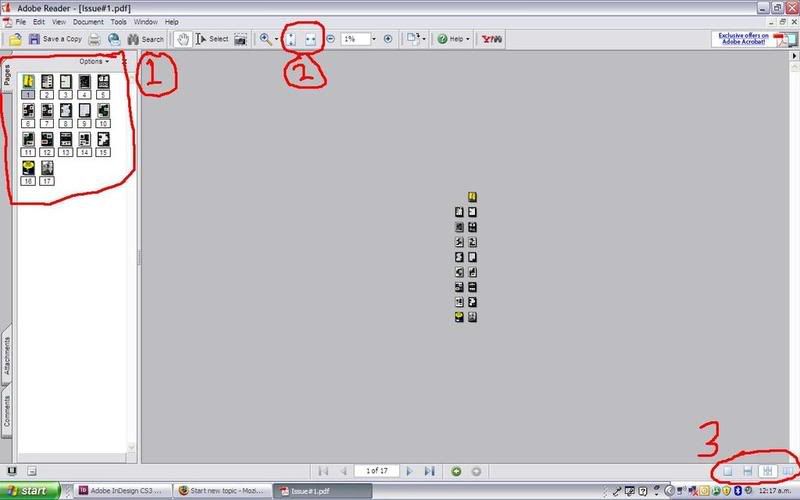
 yes this is the real magazine (though not complete), hence the tiny tiny thumbnails :P1. The pages tab - click and open this tab to view all of the pages in the document, double click the thumbnail to jump strait to a page.2. Stretch to fit - clicking the first button will fit the page vertically to fit your window. Good for a quick preview of the pages. For reading the magazine its best to click on the horizontal fit (second button).3. Page layout - for a quick and easy preview click the button that I have clicked (facing continuous) This will display the pages side by side, similar to a real magazine, and allow you to scroll them freely. The button to the left of this one will display a single page in a continuous style. The other to buttons display just single or facing sets of pages that dont scroll or flow well, but its really up to you how you view the magazine.Well thats the basics, ive found that the best way is to click in 'fit vertically' and then 'facing continuous' to quickly flick through the magazine to find articles of interest. Then click 'fit horizontal' and 'single page continuous' to read. some articles spread over two pages which face each other can be read in the 'facing continuous' view, and look better, but it really depends on your screen size (I have widescreen).If you need any further help just post here :)!
AlmoOP
#1
Heres a quick guide outlining a few features in Adobe Reader which will make viewing the magazine just a little more pleasant.First off, the magazine is compatible with acrobat/adobe reader 5.0 and above. Most computers have some sort of reader installed already, and most will also be updated with the latest version (currently 8.1.2), if not you can download the latest version from here: http://www.adobe.com/products/acrobat/readstep2.htmlOnce youve downloaded and opened the magazine there are a few features to take note of to make viewing easier.yes this is the real magazine (though not complete), hence the tiny tiny thumbnails :P1. The pages tab - click and open this tab to view all of the pages in the document, double click the thumbnail to jump strait to a page.2. Stretch to fit - clicking the first button will fit the page vertically to fit your window. Good for a quick preview of the pages. For reading the magazine its best to click on the horizontal fit (second button).3. Page layout - for a quick and easy preview click the button that I have clicked (facing continuous) This will display the pages side by side, similar to a real magazine, and allow you to scroll them freely. The button to the left of this one will display a single page in a continuous style. The other to buttons display just single or facing sets of pages that dont scroll or flow well, but its really up to you how you view the magazine.Well thats the basics, ive found that the best way is to click in 'fit vertically' and then 'facing continuous' to quickly flick through the magazine to find articles of interest. Then click 'fit horizontal' and 'single page continuous' to read. some articles spread over two pages which face each other can be read in the 'facing continuous' view, and look better, but it really depends on your screen size (I have widescreen).If you need any further help just post here :)!
yes this is the real magazine (though not complete), hence the tiny tiny thumbnails :P1. The pages tab - click and open this tab to view all of the pages in the document, double click the thumbnail to jump strait to a page.2. Stretch to fit - clicking the first button will fit the page vertically to fit your window. Good for a quick preview of the pages. For reading the magazine its best to click on the horizontal fit (second button).3. Page layout - for a quick and easy preview click the button that I have clicked (facing continuous) This will display the pages side by side, similar to a real magazine, and allow you to scroll them freely. The button to the left of this one will display a single page in a continuous style. The other to buttons display just single or facing sets of pages that dont scroll or flow well, but its really up to you how you view the magazine.Well thats the basics, ive found that the best way is to click in 'fit vertically' and then 'facing continuous' to quickly flick through the magazine to find articles of interest. Then click 'fit horizontal' and 'single page continuous' to read. some articles spread over two pages which face each other can be read in the 'facing continuous' view, and look better, but it really depends on your screen size (I have widescreen).If you need any further help just post here :)!